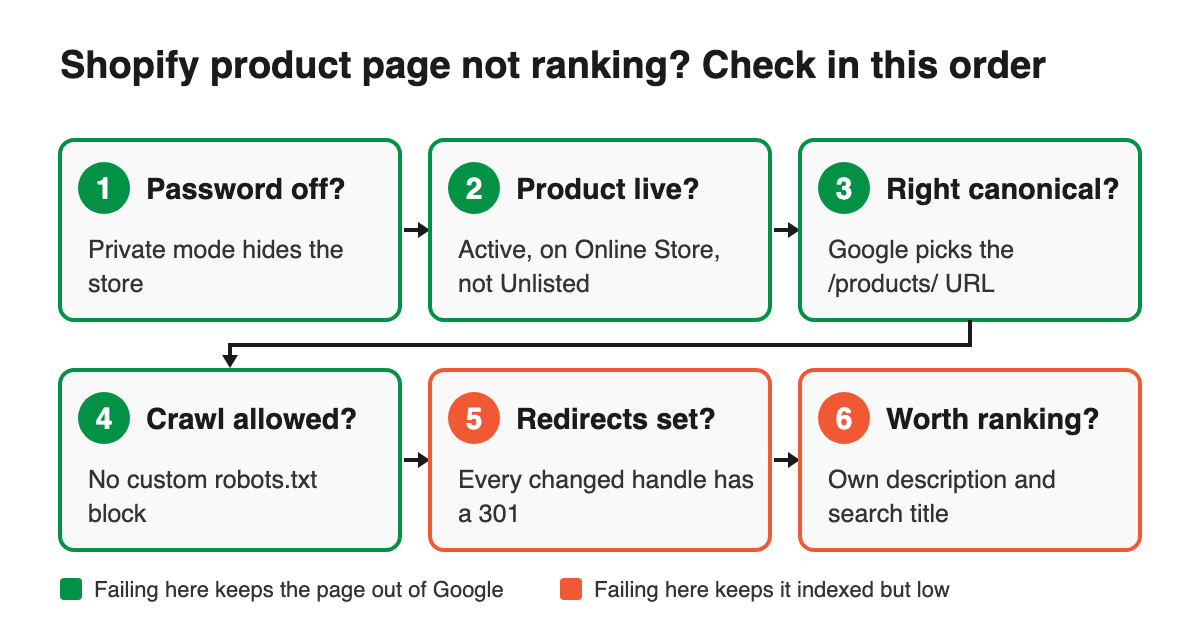
If your Shopify product pages don't show up in Google, the cause is almost always one of six things, and you can find out which in about 20 minutes. Check them in this order: is the store still password-protected, is the product actually published and listed, is Google indexing the canonical URL, is something blocking the crawl, does the page have its own title and description, and does the product page match what people search for. The first four explain pages that are missing from Google entirely. The last two explain pages that are indexed but stuck on page three.
Run the checks in order. Each one takes a few minutes, and an early failure makes the later checks meaningless.
Key takeaways
- Open Google Search Console first. The URL Inspection tool tells you whether a product page is indexed and which URL Google treats as the original.
- A password-protected Shopify store is hidden from search engines, and Google can't read its sitemap. Nothing else matters until the password is off.
- "Alternate page with proper canonical tag" on a
/collections/.../products/...URL is normal on Shopify. Don't try to fix it. - Changing a product's URL handle without a redirect resets that page's search history. Check your URL redirects after every handle change.
- Indexed but not ranking usually means a duplicated manufacturer description, a missing custom title, or the wrong page targeting the search.
Before you start: what does Search Console say about the page?
Paste one product URL into the URL Inspection tool in Google Search Console. It shows whether the page is indexed, when Google last crawled it, the canonical URL you declared and the one Google chose. Pick your best-selling product that doesn't rank, not a random one.
If you haven't set up Search Console for the store yet, do that first and submit yourstore.com/sitemap.xml under Indexing > Sitemaps. Shopify generates this file automatically, with links to your products, collections, pages and blog posts (Shopify Help Center). If you sell on international domains, each domain has its own sitemap, and each one has to be submitted.
The inspection result tells you where to start:
- URL is not on Google: start at step 1.
- Indexed, but Google chose a different canonical: go to step 3.
- Indexed and canonical matches: your problem is ranking, not indexing. Go to step 5.
1. Is the store still behind a password?
Shopify's password page hides every page of the online store from visitors and search engines (Shopify Help Center). Google also can't read the sitemap while the store is in private mode. A store that launched quietly behind a password and never came out is the first thing to rule out.
Check: open your store in a private browser window. If you see a password field, that's the answer.
Fix: go to Online Store > Preferences and turn off Private mode in the Store access section, then save. If the store is still on a trial plan or has no business address, Shopify asks you to complete that step before it lets you remove the password.
2. Is the product published and listed?
A product can exist in your admin and still be invisible to Google. Product status controls this:
- Draft products aren't ready for sale and aren't on the storefront.
- Unlisted products have a page, but Shopify hides them from internet search, the store sitemap and collection pages (Shopify Help Center).
- Active products that aren't published to the Online Store sales channel have no storefront page to index.
Also check for a seo.hidden metafield set to 1. It removes the product from sitemaps and search engines, and it's easy to forget once an app or a previous developer has set it.
Check: in the product editor, confirm the status is Active and that Online Store appears under sales channels. In Search Console, the page indexing report lists pages under "URL marked 'noindex'". Open that reason and scan for product URLs.
Fix: switch the status to Active, publish to Online Store, and delete the seo.hidden metafield or any theme code adding noindex to product templates. Then use "Request indexing" in URL Inspection. Google says indexing can take up to a week or two.
3. Is Google indexing the right URL?
Every Shopify product lives at more than one address. /products/linen-shirt is the main one, but the same page also loads at /collections/summer/products/linen-shirt and with ?variant= parameters. Shopify themes handle this with a canonical tag. We checked two live Shopify stores today, and on both, the collection URL and a variant URL each pointed their canonical tag at the plain /products/ URL.
So when Search Console lists collection-path product URLs as "Alternate page with proper canonical tag", that's the system working. Google's own description of that status says the page correctly points to the canonical page, which is indexed (Page indexing report).
Two situations do need fixing:
- "Duplicate, Google chose different canonical than user." Google picked a URL other than the one your tag declares. On Shopify, the usual cause is the theme linking to collection-path URLs from every collection grid, so Google sees far more links to the duplicate than to the canonical. Google's guidance is to link internally to the canonical URL (Google Search Central).
- No canonical tag at all. This happens on some older or heavily customized third-party themes.
Check: view the source of a product page opened from a collection and search for rel="canonical". Then check whether the product links in your collection grid go to /collections/.../products/.... In Liquid, that comes from the within filter, which Shopify's own documentation says to use with SEO implications in mind (Shopify Liquid reference).
Fix: have your theme developer remove within: collection from product card links so the grid links straight to /products/ URLs. It's usually a one-line change per snippet. Budget an hour including testing.
4. Is something blocking the crawl?
Shopify's default robots.txt allows products, collections, pages and blogs. It blocks admin, cart, checkout, account pages, and filtered or sorted collection URLs, because those repeat the same products (Shopify Help Center). So "URL blocked by robots.txt" on a URL containing sort_by or a + tag filter is expected.
It's a problem when a product URL or a main collection shows up as blocked. That almost always means someone edited robots.txt.liquid. Shopify labels this as an unsupported customization and warns that a mistake can lose all your traffic.
Check: open yourstore.com/robots.txt and look for any Disallow line containing /products or a collection you want to rank. In Search Console, open the page indexing report and open the "URL blocked by robots.txt" reason.
Fix: remove the custom rule from robots.txt.liquid, or delete the template to go back to Shopify's default, which Shopify keeps updated for you.
5. Did the product keep its URL and its search history?
Changing a product's URL handle creates a new address. If nothing redirects the old one, every link and all the ranking history pointing at the old URL now hits a 404. Shopify's help page warns that if you edit the handle too often, the product might not show up in search results (Shopify Help Center).
The same applies to deleted products. If a product that used to rank is gone, redirect its URL to the closest replacement or its collection.
Check: go to Content > Menus > URL redirects (Shopify Help Center) and confirm there's a redirect for every old handle. In Search Console, open the "Not found (404)" reason in the page indexing report and look for product URLs you've renamed or removed.
Fix: create the missing redirects, or bulk-import them as a CSV from the same screen. Standard plans allow up to 100,000 redirects, so there's no reason to leave an old product URL returning a 404.
6. Indexed but not ranking: is the page worth ranking?
If steps 1 to 5 pass and the product is indexed, the page is competing and losing. On Shopify stores, these are the four places to look.
Duplicate descriptions. If you pasted the supplier's description, the same text is on every other store selling that product, and Google has no reason to rank yours. Rewrite the description with what only you can say, such as fit notes and the questions customers actually send your support inbox. Start with your 10 highest-revenue products.
Default titles. Shopify uses the product title as the page title unless you fill in the Search engine listing section at the bottom of the product editor. "Linen Shirt" gives Google almost nothing to go on. "Men's Linen Shirt, Relaxed Fit, Stone Beige" gives it the words people search for. Shopify notes that titles over 70 characters and descriptions over 320 characters might get cut off in results, so keep within those limits.
Missing product data. Google can show products with price and availability in shopping results, image results and product snippets when the page carries Product structured data with a name, an image, a price and a currency (Google Search Central). Most current Shopify themes output this by default. Run one product URL through Google's Rich Results Test to confirm yours does.
Search intent. Someone searching "linen shirts" usually wants a range to compare, so Google tends to rank a collection page for that query. Someone searching the exact product name wants the product page. If a product won't rank for a broad category term, work on the collection page for that term and let the product page target the specific searches. Our ecommerce SEO tips cover collection page optimization in more detail.
What should you do this week?
- Inspect your top 5 non-ranking product URLs in Search Console and note which step each fails.
- Fix any step 1 to 4 failure the same day. These block indexing entirely.
- Rewrite titles and descriptions for your 10 highest-revenue products.
- Recheck the page indexing report in 2 weeks, since Google says indexing requests can take up to a week or two.
If you're launching a new store, build these checks into launch day. Our Shopify store setup guide covers the rest of the launch checklist. If you'd rather hand off the diagnosis, our Shopify setup and marketing team runs this audit as part of every store engagement.
Tags: